Download Eject
Eject has a one-time setup. You’ll need your Mac and a cable
Download for MacFree to download. macOS 14 or later.
- Blocked apps and websites are preselected. See more
- If you haven’t already selected a plan, you’ll be prompted to do so during onboarding.
- Connect your phone to your Mac for initial setup.
- Schedules and timers are controlled from your Mac.
- If you are unsatisfied with your purchase, reach out to support within 7 days for a refund.
Before you start
You’ll need a Mac, your iPhone or iPad, and a USB cable. Setup walks you through connecting them. Eject can’t be set up on a phone that’s managed by your work or a school.
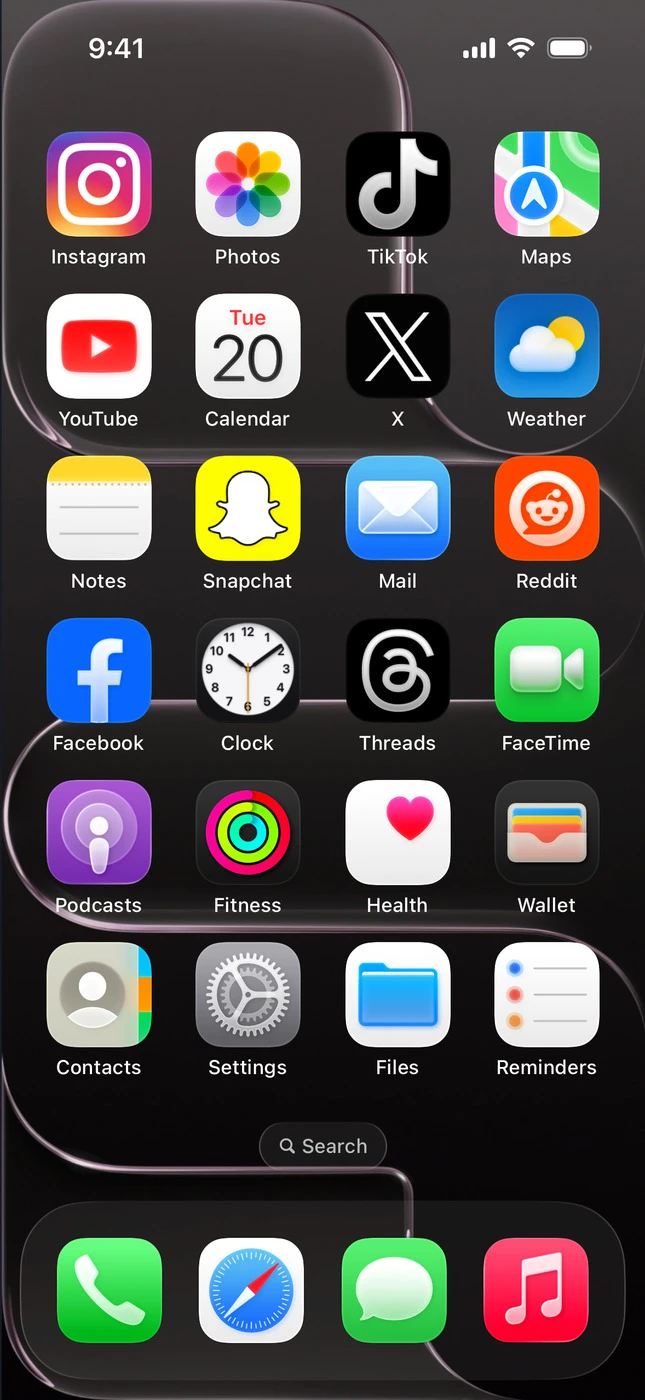
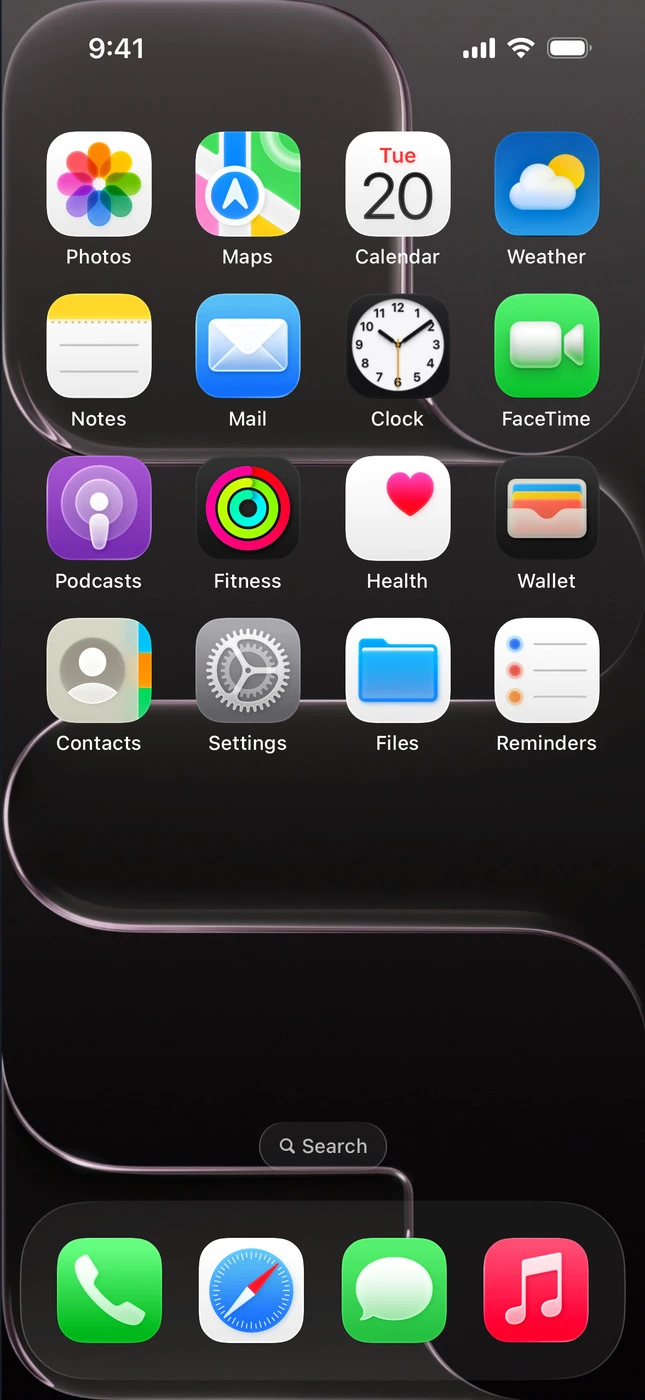
Eject blocks apps that are designed for compulsive use.
What gets blocked
- Social Media
- Entertainment
- Gaming
- Dating
- Gambling
- News
- Pornography
What doesn’t
- Phone & Messages
- Maps
- Music & podcasts
- Banking
- Work & school apps
- Camera & Photos
You can request that a specific app be blocked/unblocked by reaching out to support.
Open the downloaded file and drag Eject into Applications, then open it.
Sign in with your email address the first time you open Eject, then choose Monthly, Annual, or Lifetime. Payment happens in your browser. Then go back to Eject on your Mac, and it walks you through setting up your phone.
For the first 50 customers, Dan can do the setup with you on a call. Book a time.